STEP 01
Install Tailscale
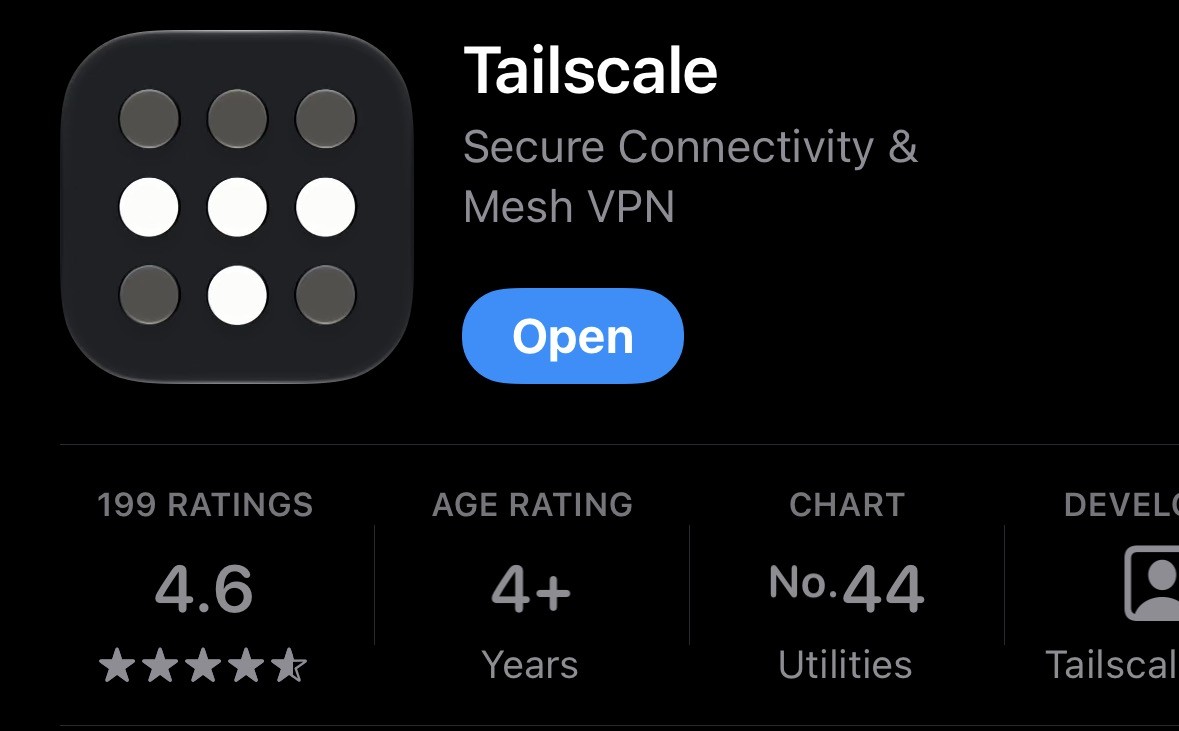
Install the official Tailscale app from the App Store.
Show screenshotHide screenshot
Get connected to Krayotaff services. Follow your setup guide, then explore the available services.
Installation, account registration and connection.
This guide is being prepared.
Use the official Tailscale app with our own server. A Tailscale account is not required.
Install the official Tailscale app from the App Store.
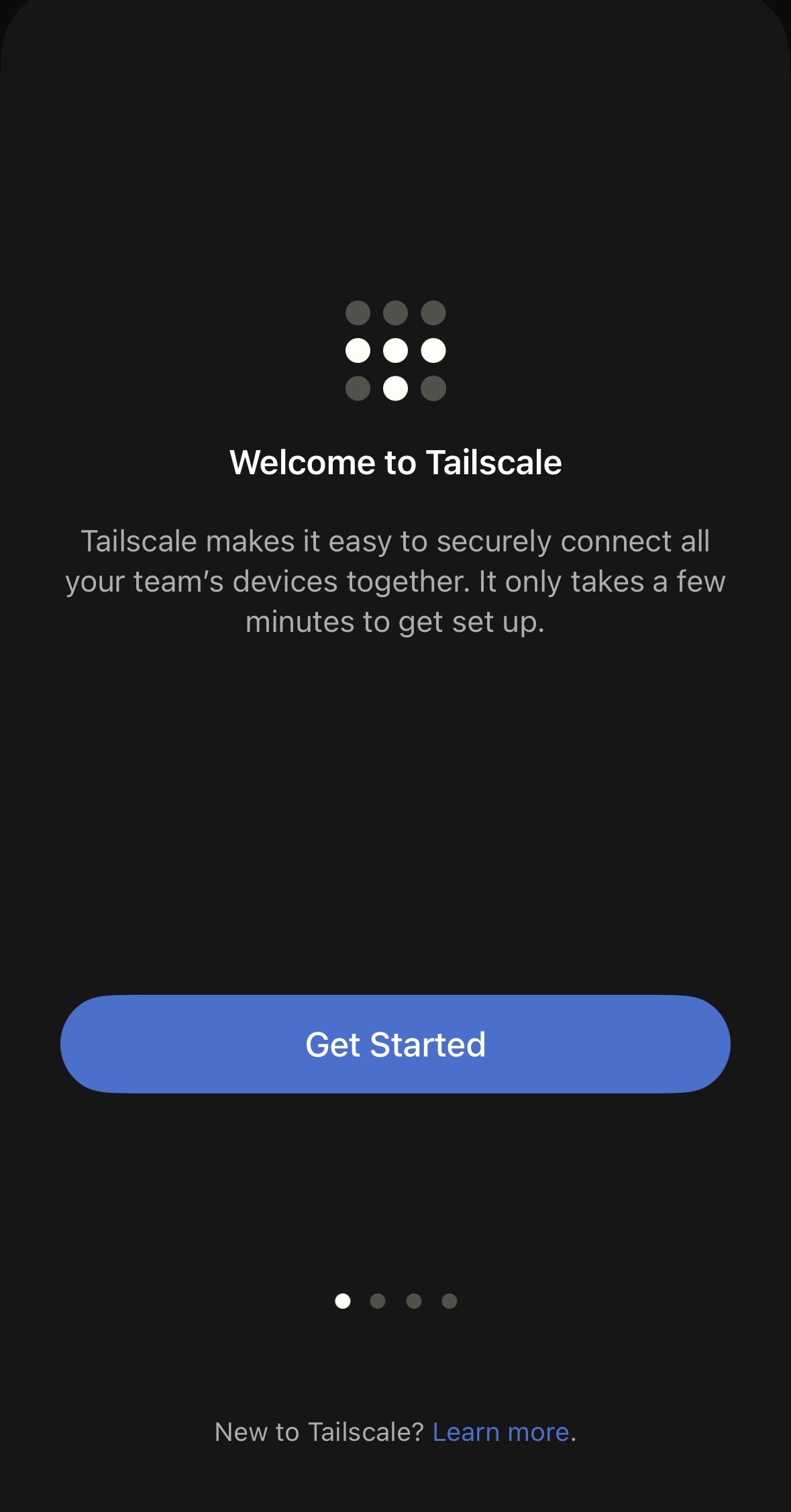
Tap Get Started. You do not need to create a Tailscale account.
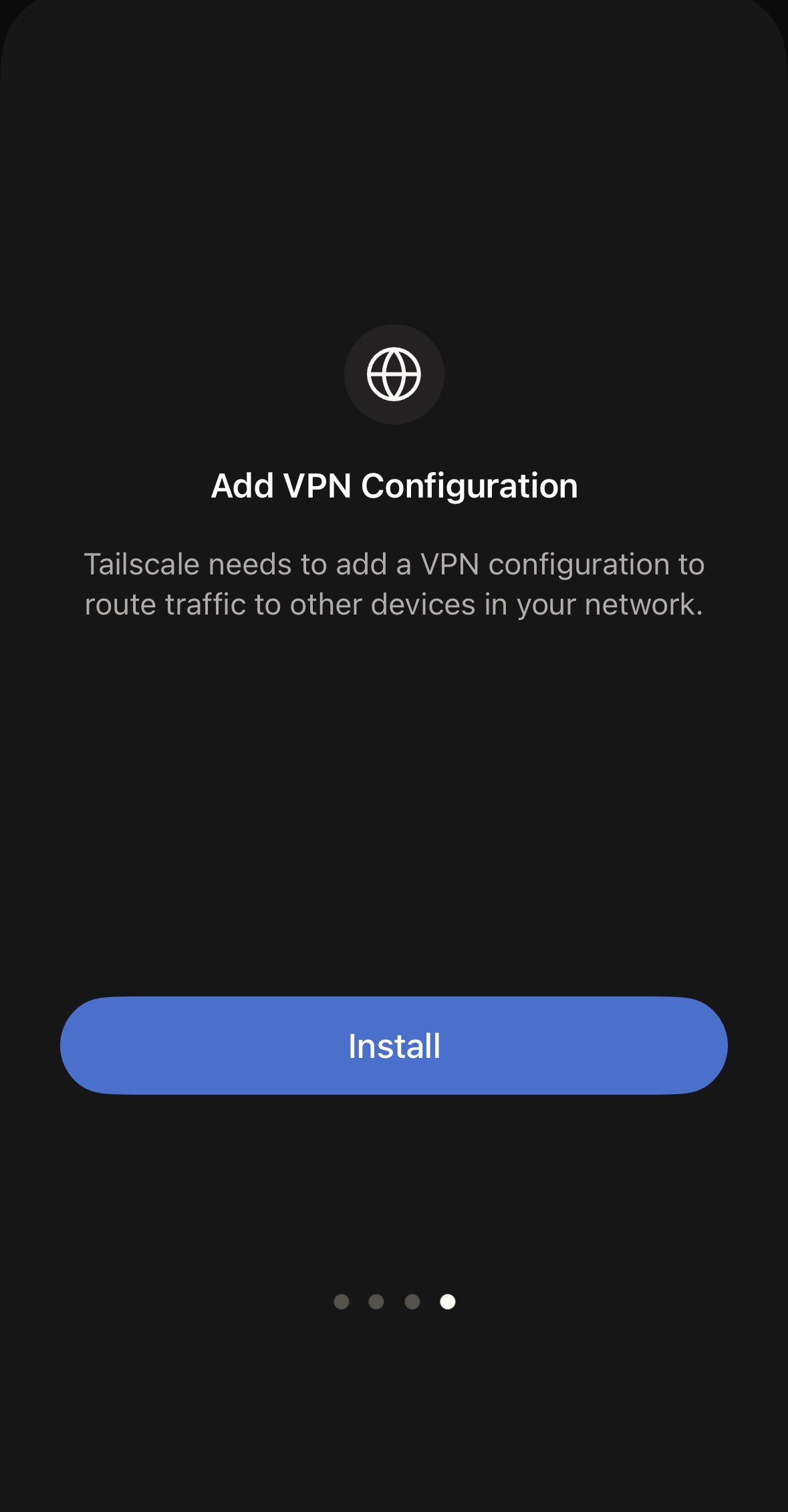
Tap Install and allow iOS to add the VPN configuration. Confirm with your device passcode if requested.
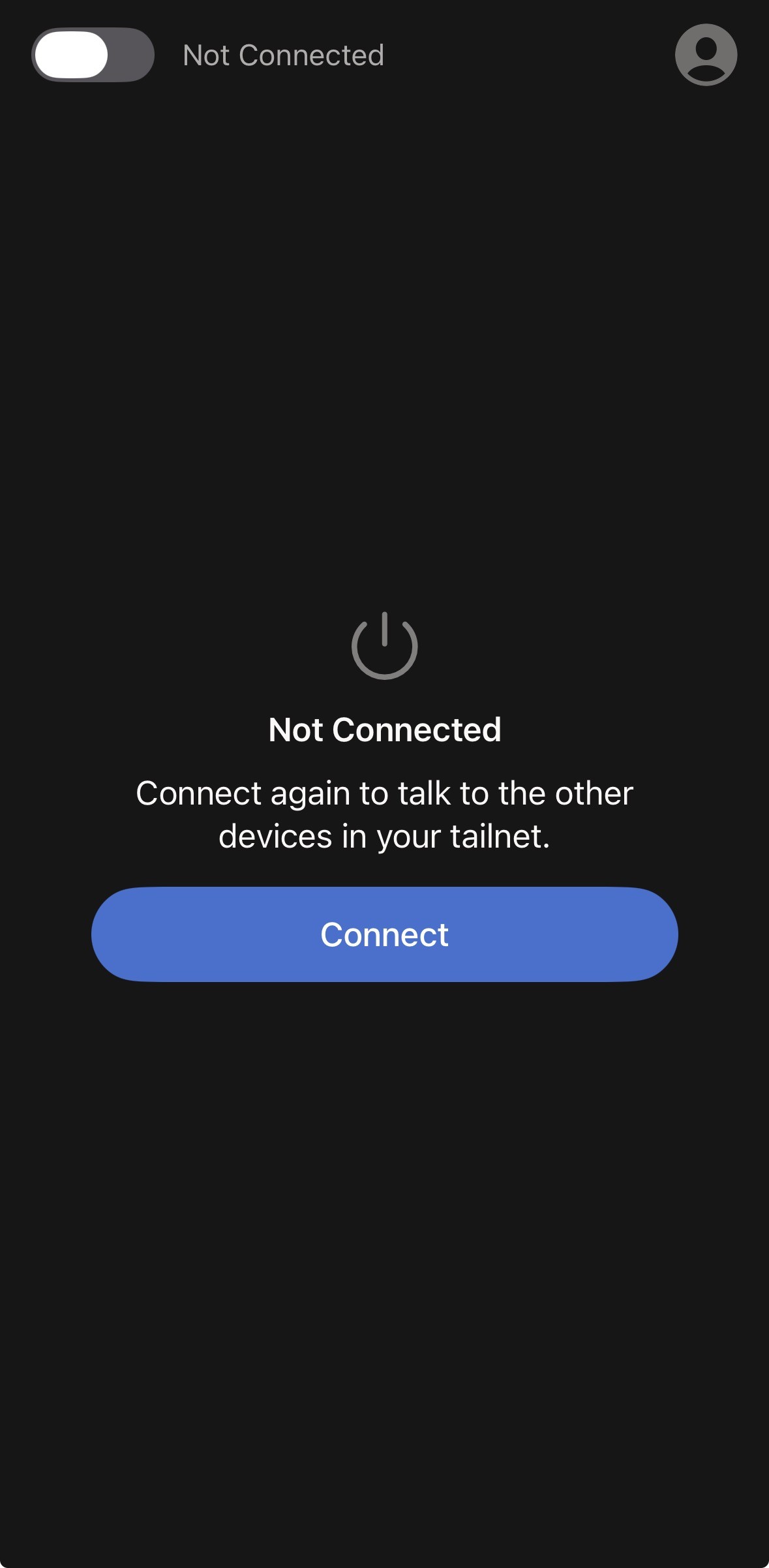
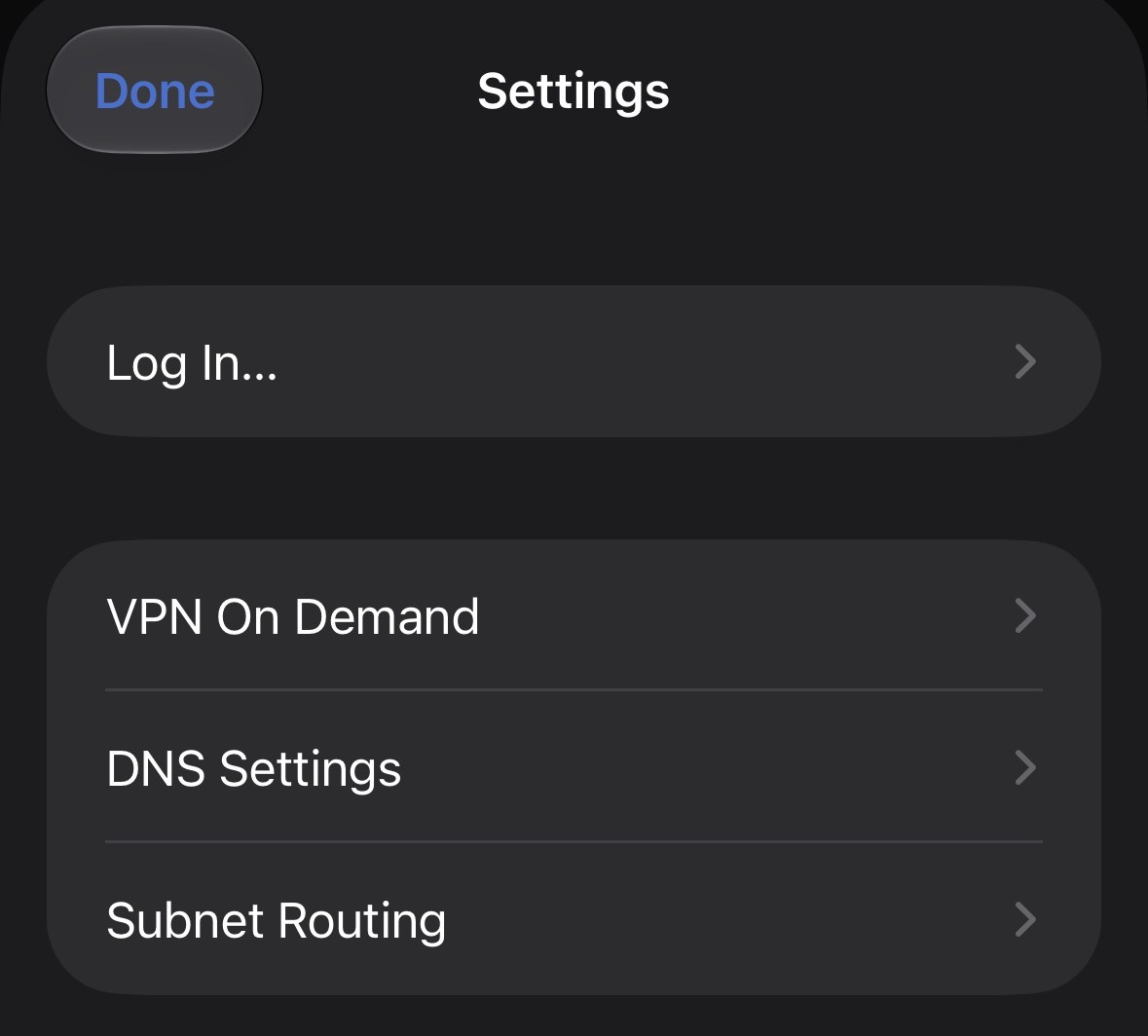
Open Settings using the settings icon.
Tap Log In… to open the account options.
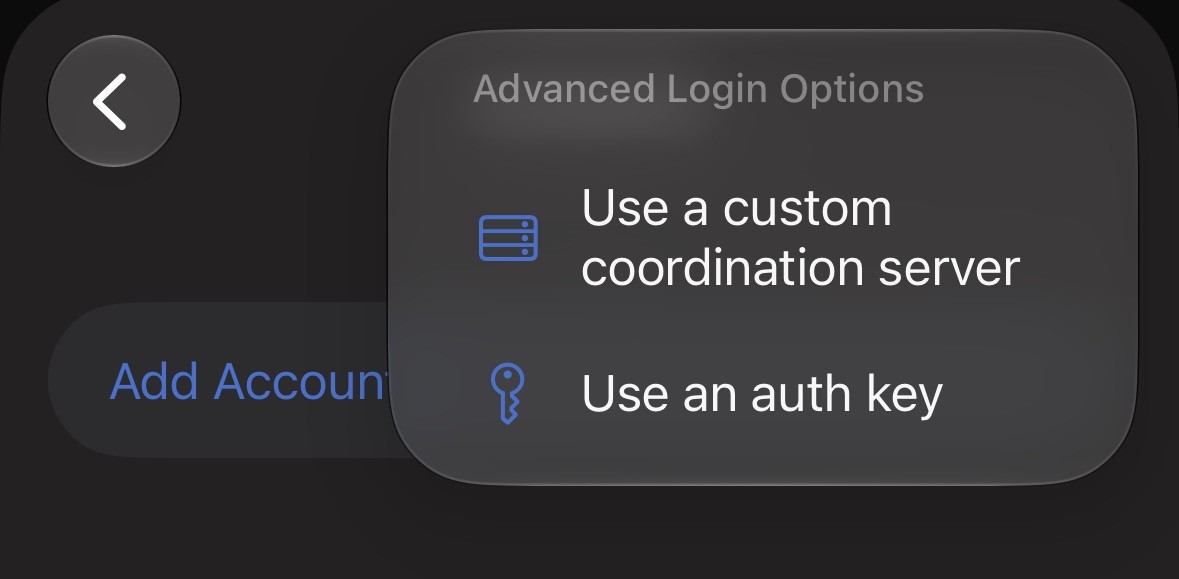
Select Use a custom coordination server.
Enter https://connect.krayotaff.com, then tap Log in.
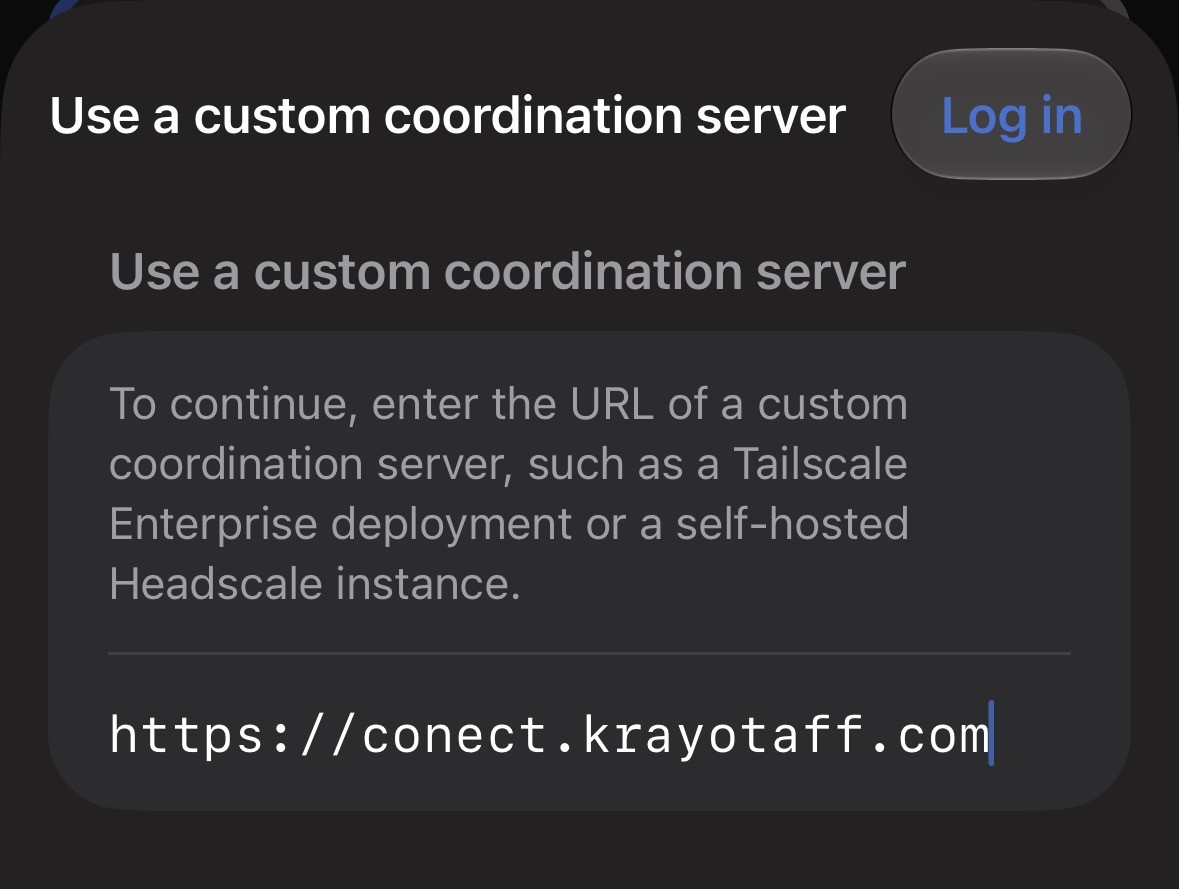
https://connect.krayotaff.com
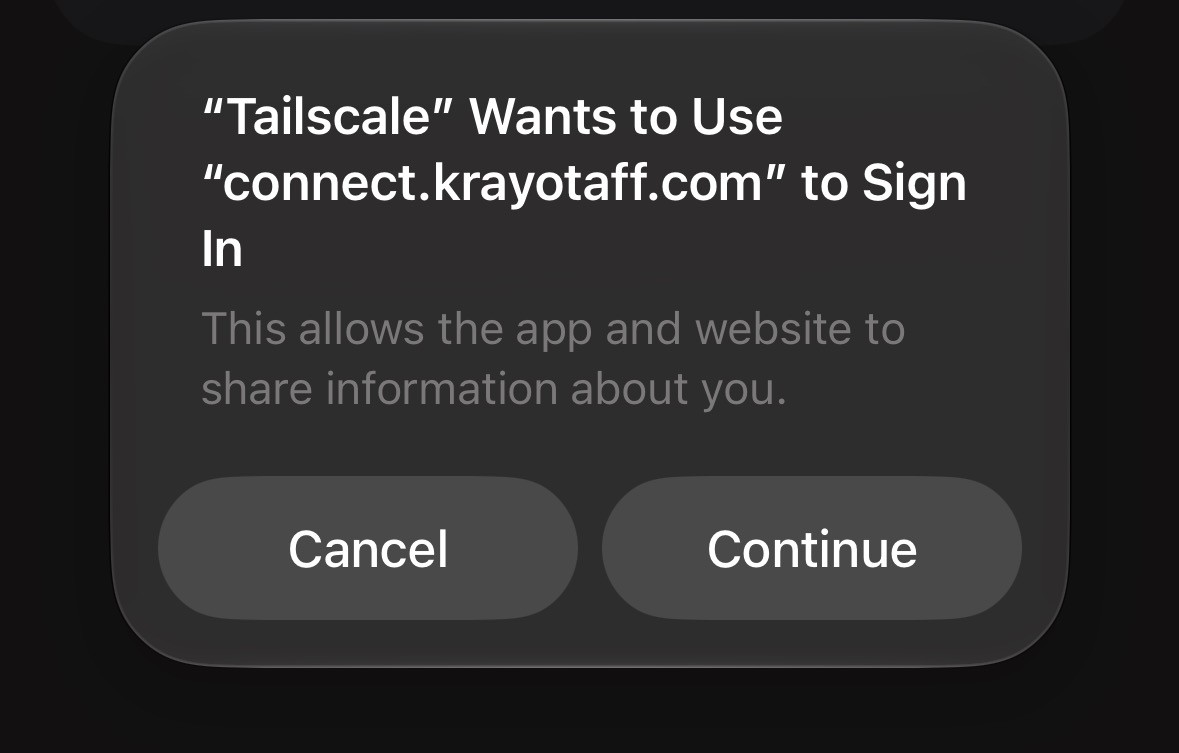
Tap Continue to open our sign-in page.
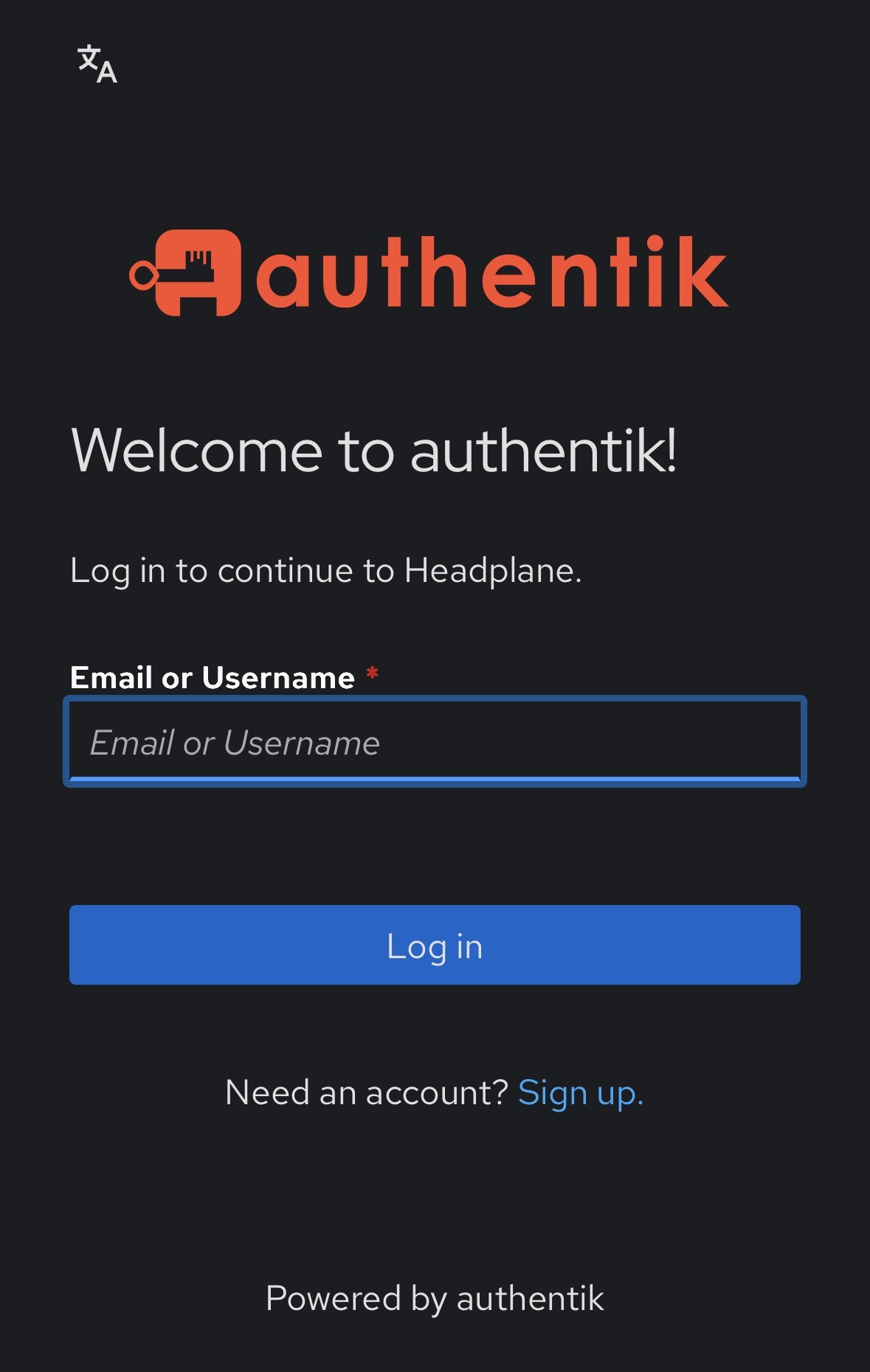
Tap Sign up. If you already have an account, log in instead.
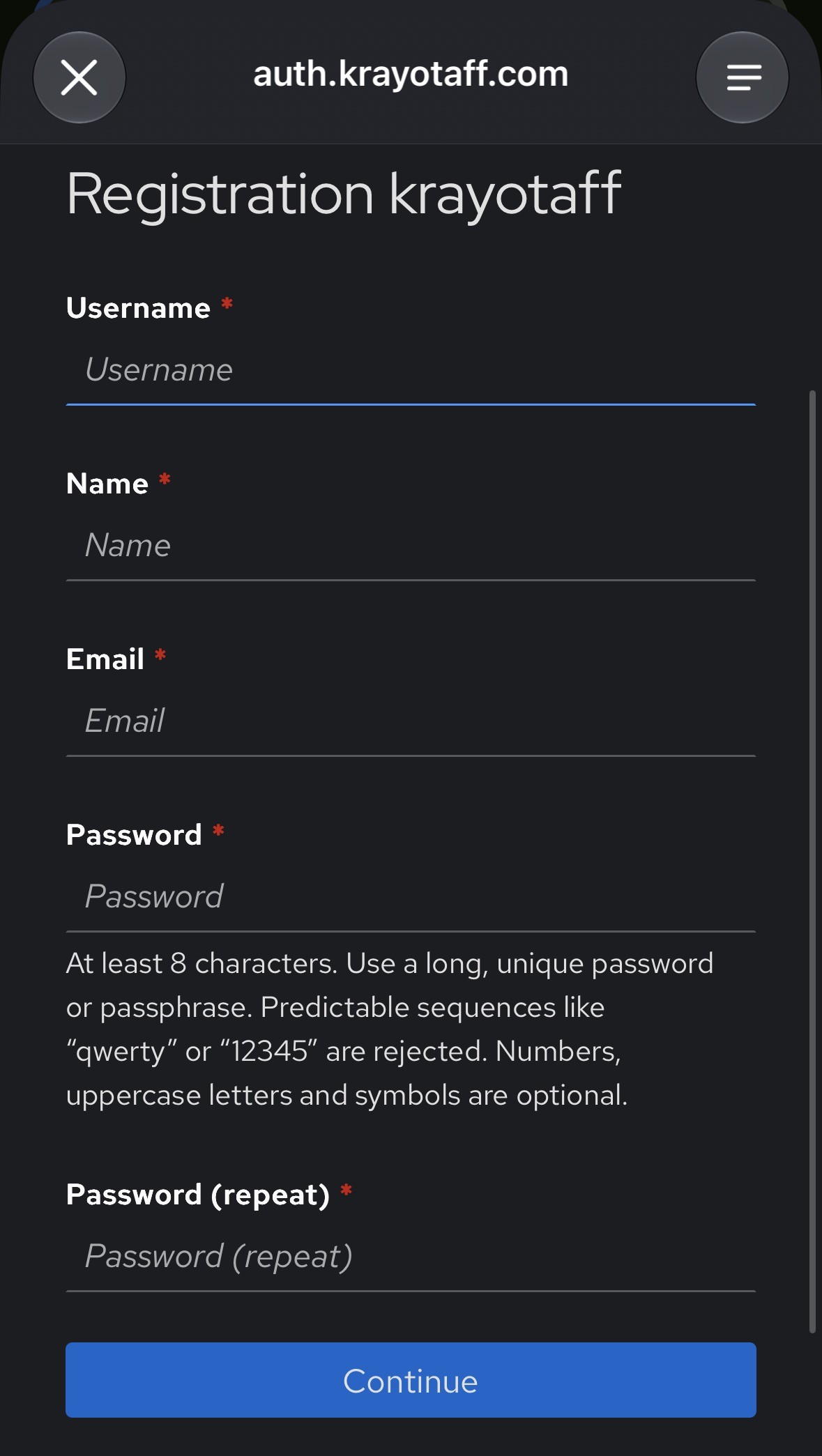
Enter your username, name, email and a strong, unique password. Repeat the password, then tap Continue.
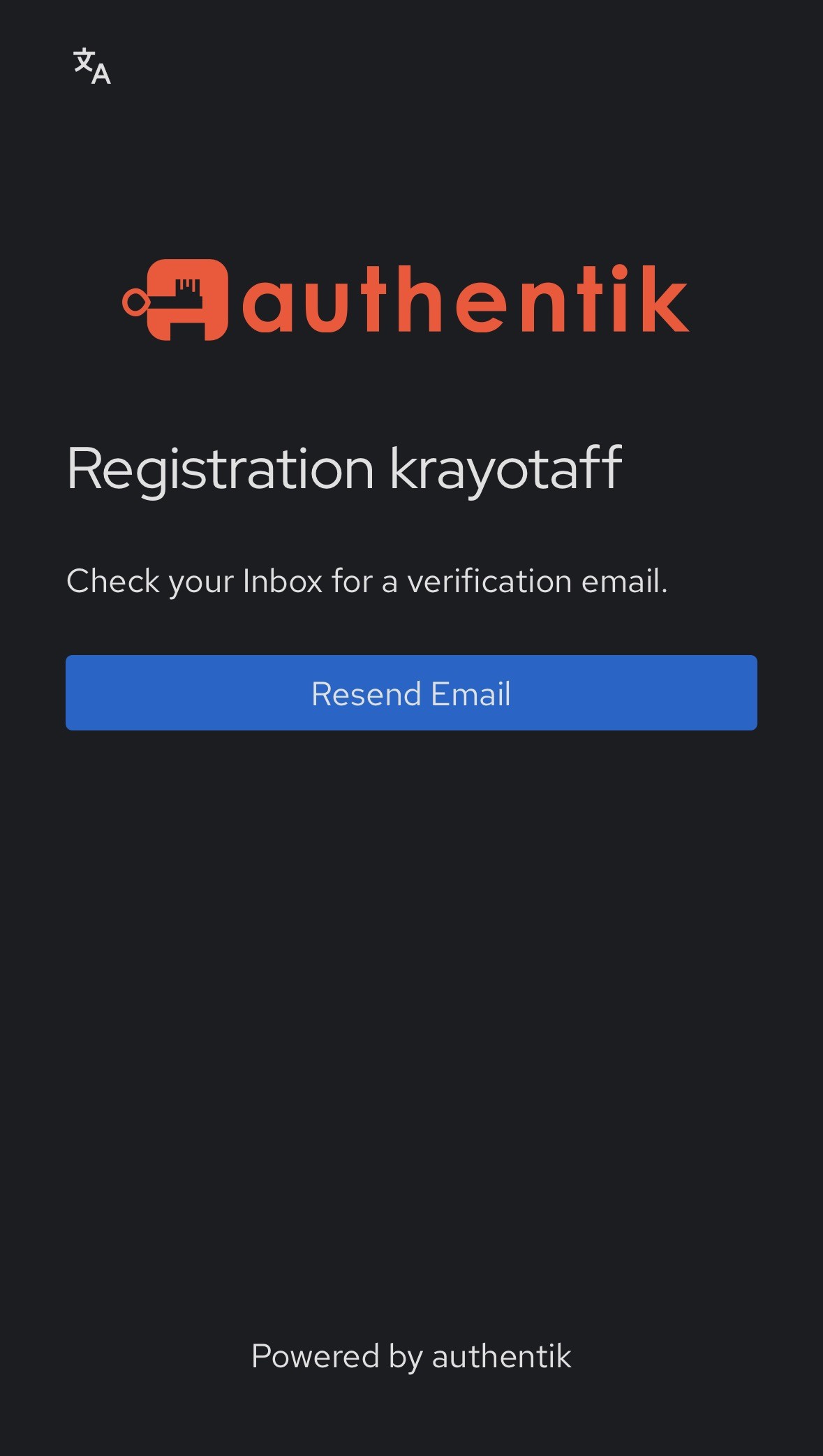
Open your inbox and find the verification email. Use Resend Email only if needed.
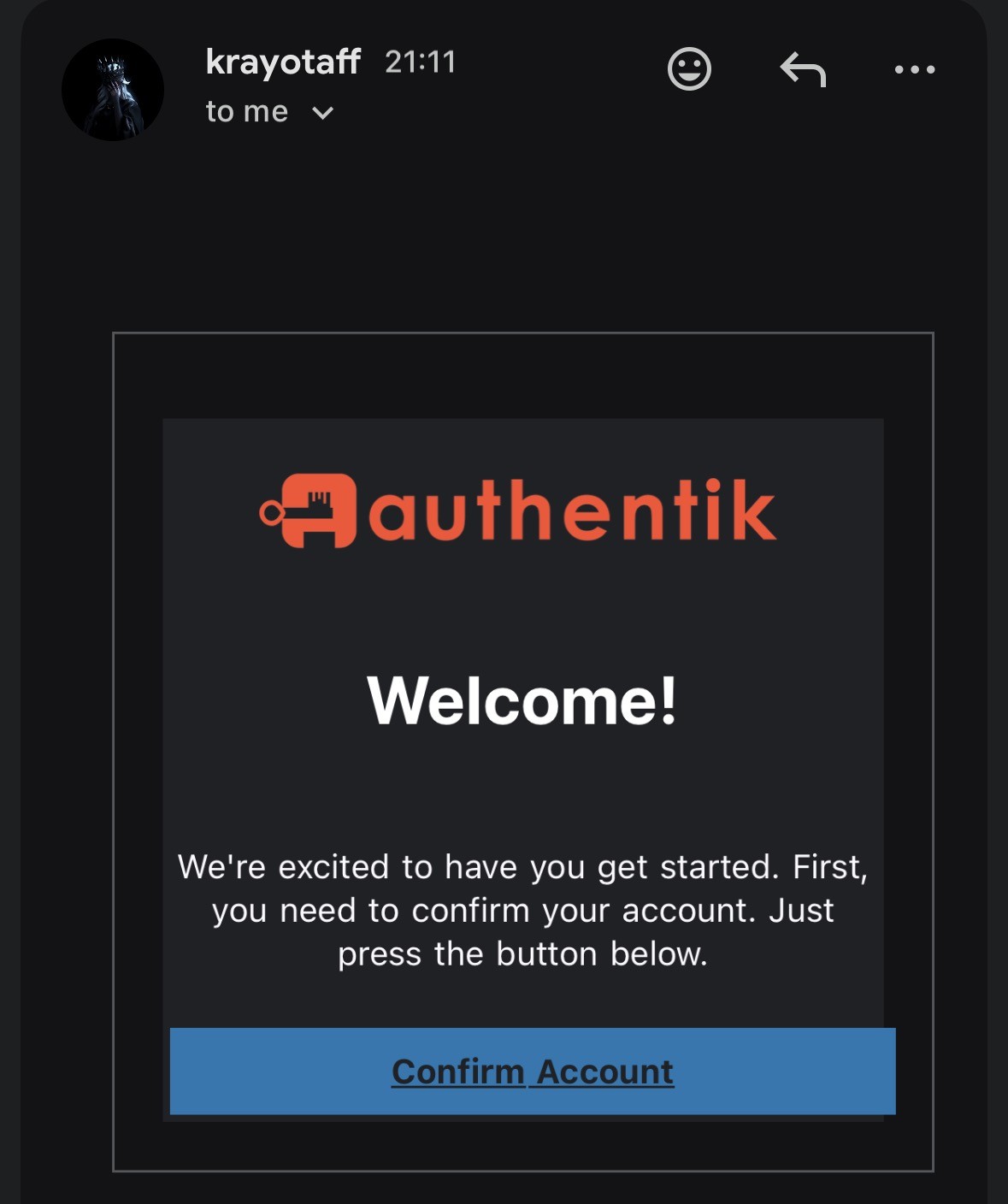
Tap Confirm Account in the email you requested.
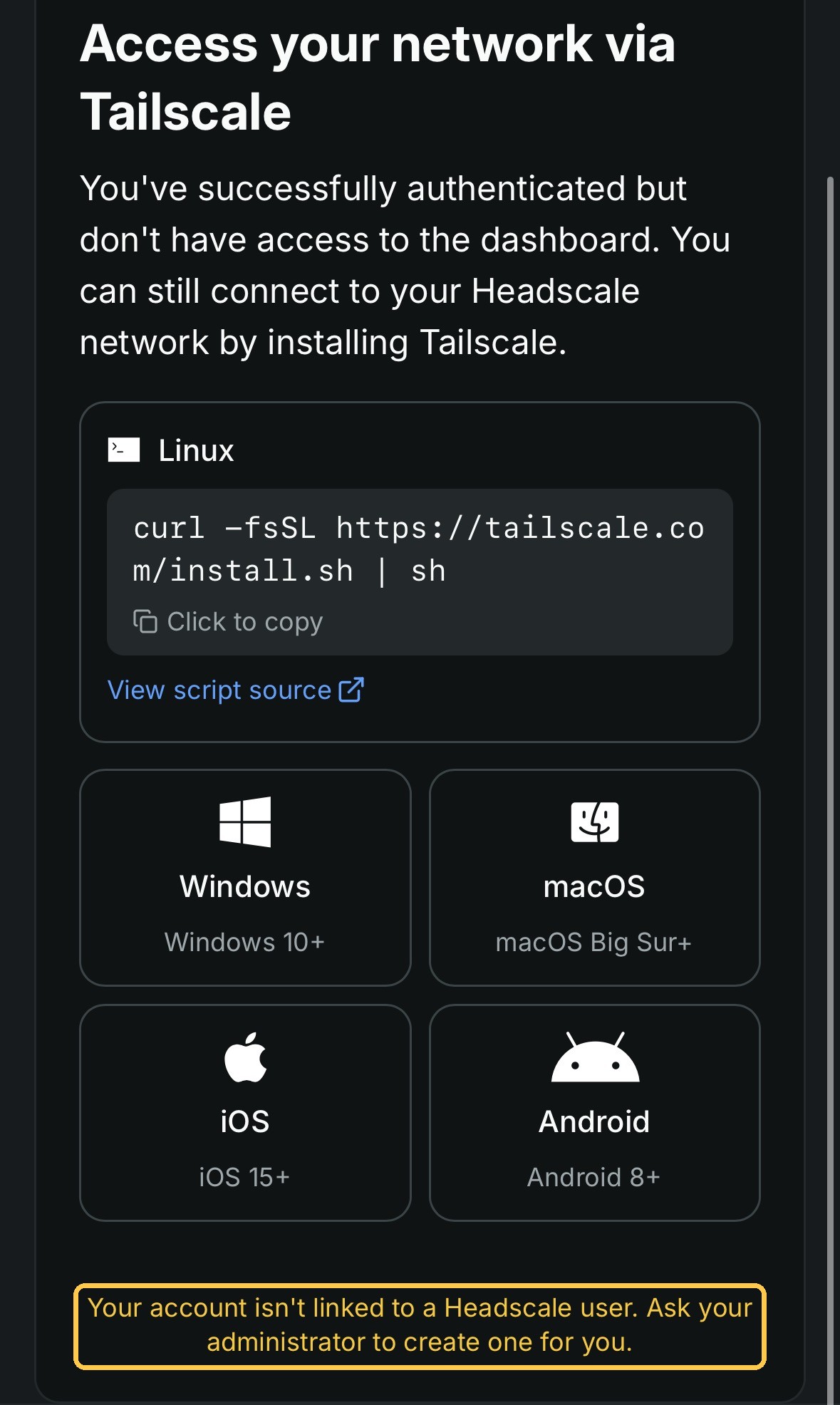
If access has not been granted yet, please wait and try logging in again through the Tailscale app later. You do not need to register again.
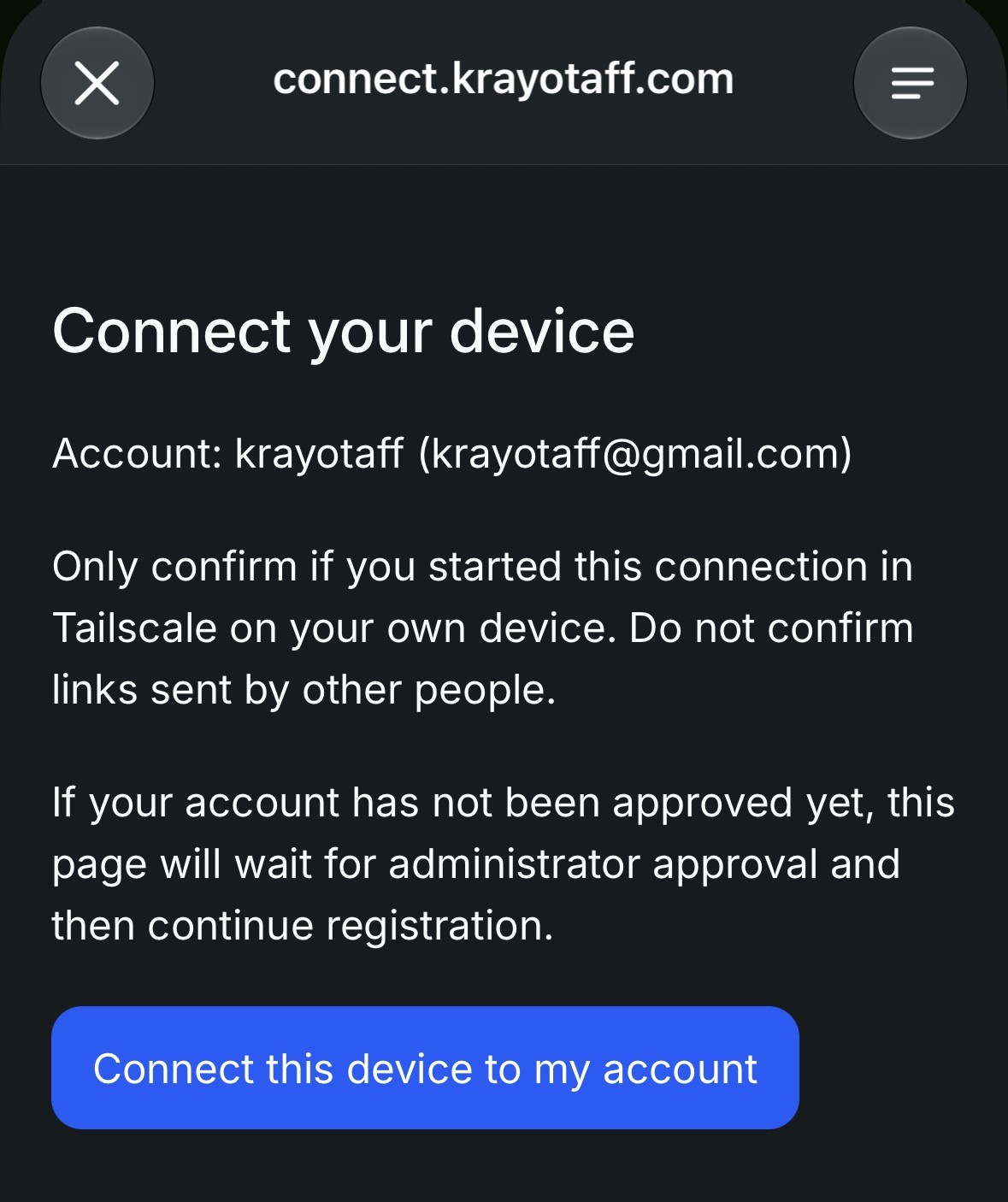
Tap Connect this device to my account only if you started this connection on your own device. If approval is still pending, the page may wait before continuing.
Connect the official Tailscale app to our own server. A Tailscale account is not required. Menu names and the order of permission prompts may vary by app version and Android device. Some screenshots are reused from the iOS walkthrough. Android-specific screenshots will be added later.
Download and install the official Tailscale app from Google Play. You do not need to create a Tailscale account.
Open the app and tap Get Started.
When Android asks to set up a VPN connection, approve the request. This allows Tailscale to connect your device to the private network. If the prompt appears later during setup, approve it then.
Open Settings in the top-right corner, then tap Accounts.
Open the three-dot menu in the top-right corner and select Use an alternate server.
Enter the address below and continue. Complete the next steps on our sign-in page in your browser.
https://connect.krayotaff.com
Log in with your existing Krayotaff account. If you do not have one, tap Sign up. Already registered? Skip the account creation and email verification steps.
Enter your username, name, email and a strong, unique password. Repeat the password, then tap Continue.
Open your inbox and find the verification email. If it does not arrive, check your spam folder before requesting another email.
Tap Confirm Account in the email you requested. Follow the browser prompts to continue.
If you see a message that access has not been granted yet, please wait and try logging in again through the Tailscale app later. You do not need to register again.
When prompted, tap Connect this device to my account. Only confirm if you started this connection on your own device. If approval is still pending, the page may wait before continuing.
Return to the app and check that your device is connected. You can then open the services your account is allowed to use.
Open a service in your browser or get the app for your device.
Your private space for files, photos and documents. Upload, organise and share files using the web interface or the official Nextcloud app.
You can use Nextcloud directly in your browser. Installing an app is optional.
Access your files on your phone, upload photos and videos, and keep selected files available offline.
When the app asks for your server address, enter:
https://cloud.krayotaff.com
Then sign in with your separate Nextcloud account.
Having trouble opening a service? Check the status page for monitored service availability. It can help you see whether a service outage has been detected.
First check your internet connection and make sure Tailscale is connected. If the status page is also unreachable, this alone does not mean every service is down: your connection to the private network may be unavailable.
A contact form will be available here once the website is ready.